




How to Bypass NotebookLM and Gemini Region Restrictions



Clean IP picks: Static IPs from $1.5 each, Dynamic IPs from $0.5/GB


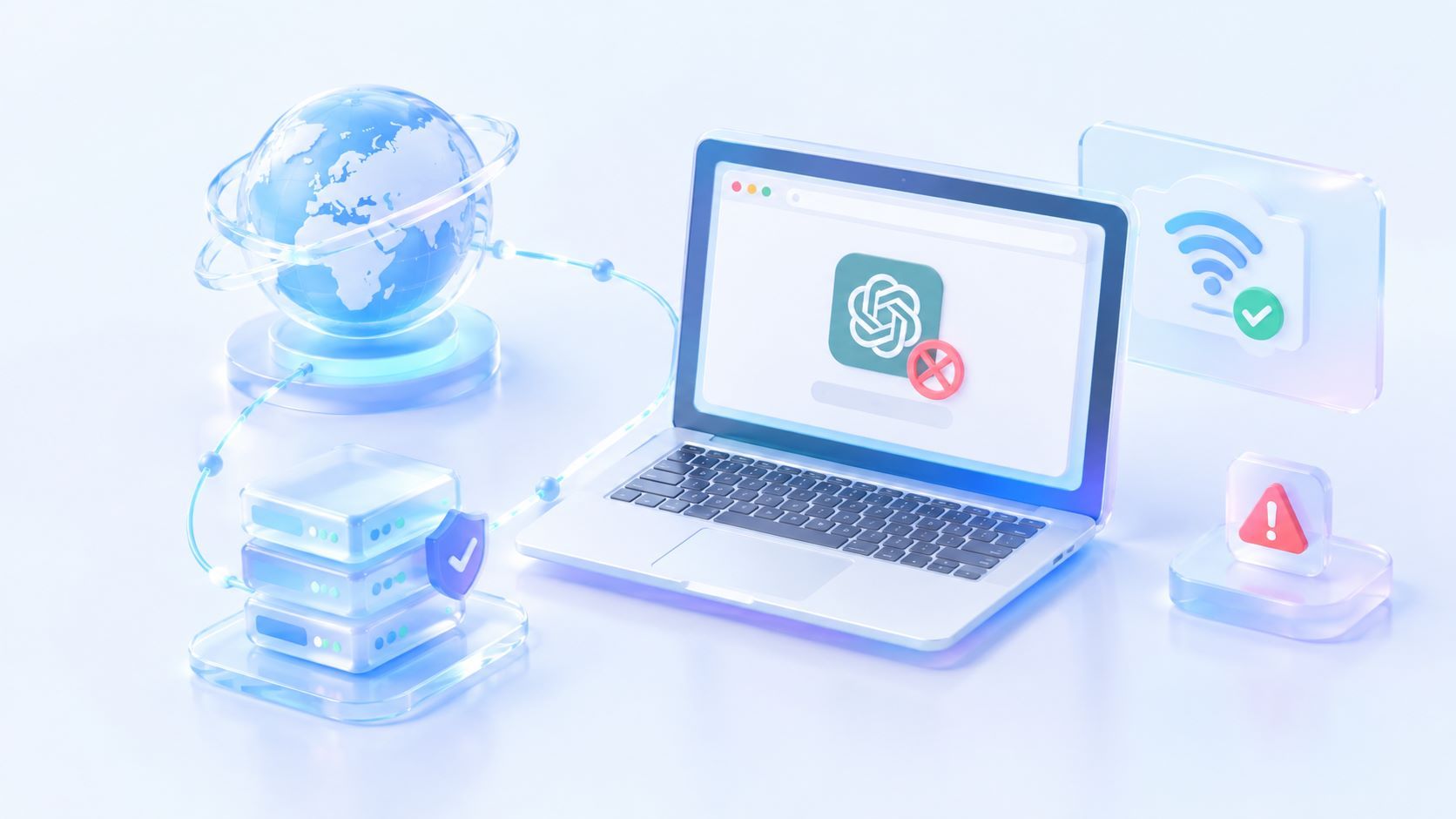
After clicking “Try NotebookLM,” the page does not open the notebook and the URL changes to location=unsupported;
Gemini may show the message “Gemini isn't currently supported in your country. Stay tuned!”;
Or the page may repeatedly display “Something went wrong. Please try again later.” These are common issues when using NotebookLM and Gemini.
In many cases, these issues are related to the access environment, especially when the region associated with your IP address cannot be identified correctly. This can lead to unsupported-region errors, repeated redirects, and other access problems.
If changing your network does not solve the problem, you should also check your Google account, age verification, and account type.
This guide walks you through the steps to troubleshoot and resolve region-related access issues with NotebookLM and Gemini.
First, Check Whether Your Region Is Supported
Before changing your node, check whether NotebookLM or Gemini is currently available in your target region.
Google rolls out different products and features across different regions. Access to Gemini does not necessarily mean that all related Gemini features are available in the same region.
In July 2026, Google renamed NotebookLM to Gemini Notebook. The product itself remains unchanged, but availability may still vary by region, platform, and feature.
If the target region is already supported but you still see location=unsupported, check your IP location and network environment more closely.
What Factors Affect Region Restrictions?
Google’s regional availability checks are not based solely on your current IP address. Your account region, device location, browser, and network environment may also affect access. Common factors include:
▸ Country or region associated with your current IP
▸ Whether your IP location is identified correctly
▸ Regional information associated with your Google account
▸ Browser, device, and network environment
▸ Account type and related permissions, such as administrator settings for Workspace or school accounts
Understanding these factors makes it easier to identify the source of the problem.
Method 1: Change Your Node
Regions such as the United States, United Kingdom, Canada, and some EU countries generally offer good compatibility. When changing nodes, keep the following in mind:
▸ Use a relatively stable node
▸ Avoid frequently switching between countries
▸ Choose a node that can remain available for long-term use
Frequently switching between IPs in different countries can create inconsistencies between your account region, cookies, and current network environment. When troubleshooting, it is better to stick with one stable node in a supported region.
After changing nodes, clear your browser cookies or use an incognito window.
Method 2: Check Your Current IP
If changing nodes does not help, check the actual geographic location of your current IP. Pay particular attention to:
▸ IP country/region and city
▸ ISP and ASN
▸ IP type, such as whether it is identified as a data center or proxy network
If your proxy node shows the United States but an IP lookup still places the IP in another country, the IP's geographic information may be inaccurate.
In this case, repeatedly refreshing the page is unlikely to help. Switching to an IP with accurate geographic information is usually more effective.
Method 3: Use a Proxy IP
NotebookLM and Gemini are both Google services and may apply relatively strict risk controls.
If an IP is shared by many users, has a history of abuse, or comes from an unclear source, you may encounter additional verification even when the IP is located in a supported region.
A high-quality proxy can help improve the access environment in several ways: it can provide a network exit that more closely resembles a regular user connection;
it can also reduce the likelihood of an IP being flagged or blocked and provide a more stable connection for long-term use. Consider using a static residential proxy.
Method 4: Check Your Browser Environment
If the region restriction remains after changing your IP, check your browser environment. Cookies, cache, account login status, and browser extensions can all affect how Google services handle your session.
If you manage multiple accounts or need to keep different network environments separate, you can use separate browser profiles or an anti-detect browser to keep each account’s cookies, proxy, and browser environment isolated. This helps prevent different accounts from sharing the same environment.
However, if the issue is caused by inaccurate IP geolocation or a restriction associated with your Google account, changing the browser environment alone usually will not resolve it.
Method 5: Check Your Google Account
If you have already checked your network and browser environment but still cannot access the service, check your Google account:
▸ Whether the country or region associated with your account is correct
▸ Whether you meet the age requirements. You must meet the applicable age of consent in your country or region and complete age verification in your Google account. Features such as Deep Research, Infographics, and Slides are available only to users aged 18 or older.
▸ Whether you are using a Workspace or school account and whether an administrator has restricted access to the relevant features
These factors are not related to your IP, but they can also cause regional access restrictions or limit certain features.
How to Combine These Methods
If you are simply trying to resolve a regional restriction, start by checking your IP location and IP quality. If you also manage multiple Google accounts or need a stable setup for long-term use, consider adding a separate browser environment.
A practical long-term setup is:
Supported-region node + high-quality residential proxy + isolated browser environment
Conclusion
If NotebookLM or Gemini cannot be accessed or shows a region restriction, the problem is often related to the current access environment or account status not meeting Google’s requirements.
For users who rely on AI tools regularly, setting up a suitable access environment once can save more time than repeatedly troubleshooting the same issues.
IPDeep provides high-quality proxy IPs, including residential proxies, and mobile proxies. With coverage across 200+ countries and regions, IPDeep supports a wide range of network access needs.
Frequently Asked Questions
Q1: How can I tell whether Google has flagged my access environment as unusual?
If you frequently encounter CAPTCHAs, access errors, or restricted features, it may indicate that Google has detected unusual activity or an issue with the access environment.
Q2: Is there a way to check whether my current IP is in a supported region?
You can use an online IP geolocation lookup tool to check whether your IP is associated with a country or region where the service is available.
Q3: Why does NotebookLM still show a region restriction after I switch to a US IP?
The IP's geographic location may be identified incorrectly, or the issue may be related to your Google account region, cookies, or login status.
Start by checking the IP's country and ISP information, then clear your cookies or use a new browser session. If the issue persists, try another IP in a supported region.
Q4: Why can I use Gemini but not NotebookLM?
Although Gemini and NotebookLM are both Google AI products, they may have different regional availability and rollout schedules for specific products and features.
Google also maintains separate supported-region lists for Gemini and NotebookLM, so access to Gemini does not necessarily mean that all NotebookLM features are available in the same region.