




IPDEEP + Dolphin Anty Setup: How to Appear as Different Users and Where to Use It



Clean IP picks: Static IPs from $1.5 each, Dynamic IPs from $0.5/GB


Promo code - IPDEEP20
LInk - https://dolphin-anty.com/
Things used to be simple: change your IP address, and a website would see you as a different user. That is no longer the case. Set up a proxy and switch to another browser, and platforms like Facebook or Google may still recognize that you are the same Mateusz from Warsaw, not Pierre from Paris or Hans from Berlin you are trying to appear as.
Websites collect much more information about users than just their IP addresses. This includes the operating system, User-Agent, Canvas and WebGL data, screen resolution, time zone, languages, fonts, and dozens of other parameters. Together, these signals form a device's digital fingerprint.
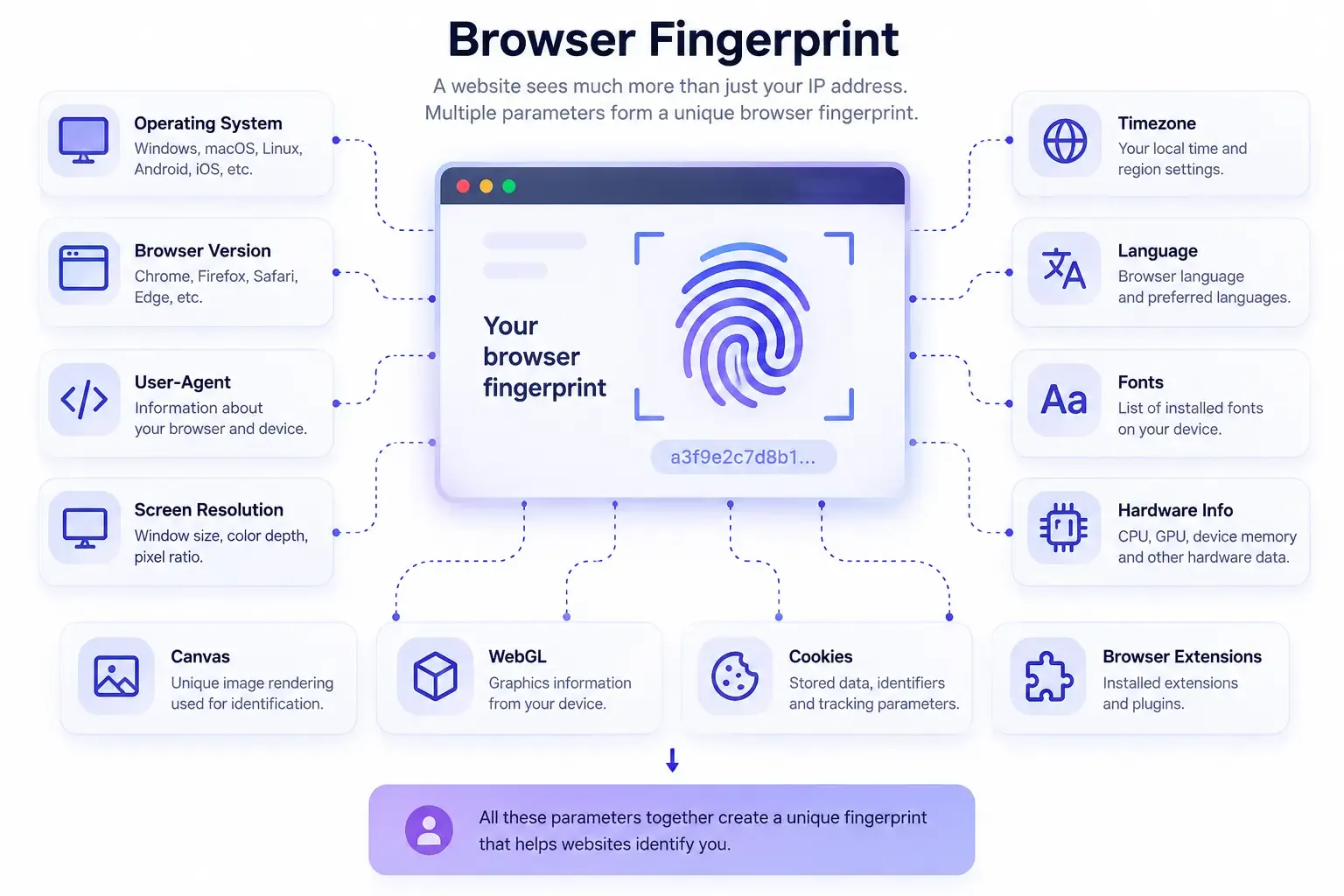
This fingerprint is exactly what major platforms can use to recognize you. Sometimes even switching devices may not be enough. Over time, similar cookies can accumulate, while behavioral patterns, such as typing speed, interests, and the way you scroll through feeds, may also remain similar.
So, when would you actually need to prevent a website from recognizing you? Appearing as different users can be useful when you:
• Manage multiple accounts and do not want the platform to link them to the same user;
• Need to create a new account on a platform where your previous account was blocked or restricted;
• Want to view search results or websites from different GEOs and operating systems;
• Need to access a platform that restricts traffic from certain countries or devices.
Why Use an Antidetect Browser?
Google Chrome lets you create multiple browser profiles and configure a separate proxy for each one. At first glance, this may seem enough to make every profile appear as a different user.
The problem is that these Chrome profiles can still expose the same underlying environment to websites, including:
• The same system time;
• The same hardware parameters;
• The same browser fonts, language settings, graphics rendering data, and other characteristics.
These similarities can allow websites to determine that profiles with different IP addresses are still being operated from the same device.
How Does Dolphin Anty Work?
Dolphin Anty creates isolated browser profiles that can appear to websites not only as separate browsers, but as separate devices. Each browser profile acts as its own workspace where you can create and manage accounts, browse search results, and perform other tasks.
Each profile has its own:
• Cookies;
• Cache;
• Browsing history;
• Local Storage;
• Digital fingerprint;
• Proxy;
• Other browser environment parameters.
For example, you can create 20 profiles in Dolphin Anty and use a separate account in each one. From a website's perspective, these environments can appear as 20 different users rather than 20 browser profiles running on the same device.
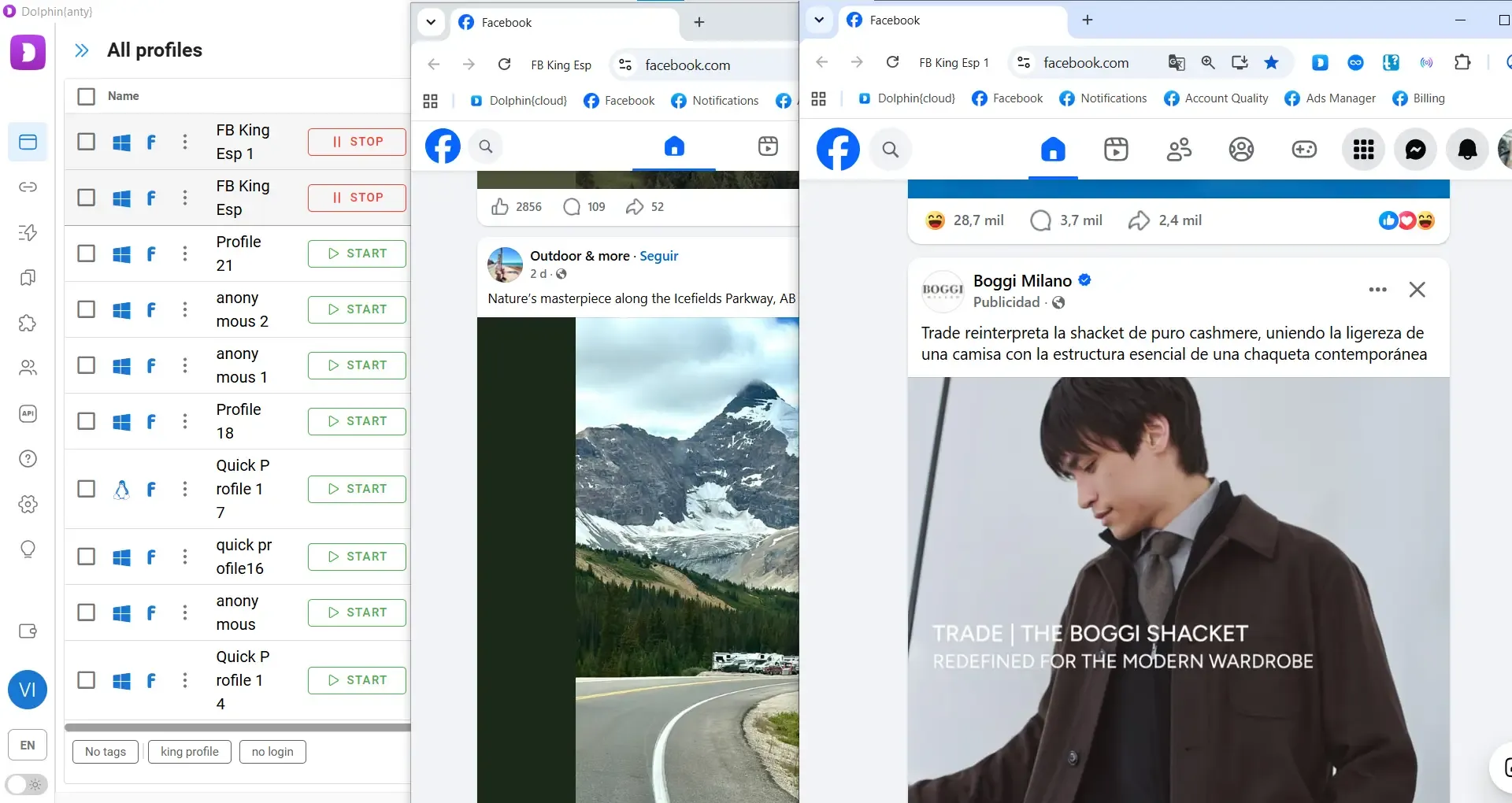
On the left is the list of browser profiles in Dolphin Anty. On the right are two active browser profiles with different Facebook recommendation feeds because Facebook sees them as different users.
Dolphin Anty uses real user fingerprints. When you create a browser profile, the antidetect browser selects a fingerprint that is consistent with both the IP address provided by your proxy and the selected operating system.
This is important. Simply randomizing Canvas, WebGL, User-Agent, and other parameters is not enough. If these parameters contradict one another, the fingerprint itself may look suspicious.
How to Create Browser Profiles
To create a profile, open the Profiles section in Dolphin Anty and click the button to create a new one. Next, add a proxy and, if needed, give the profile a custom name. Once the proxy details are added, click the Check Connection arrows to make sure the connection is working properly.
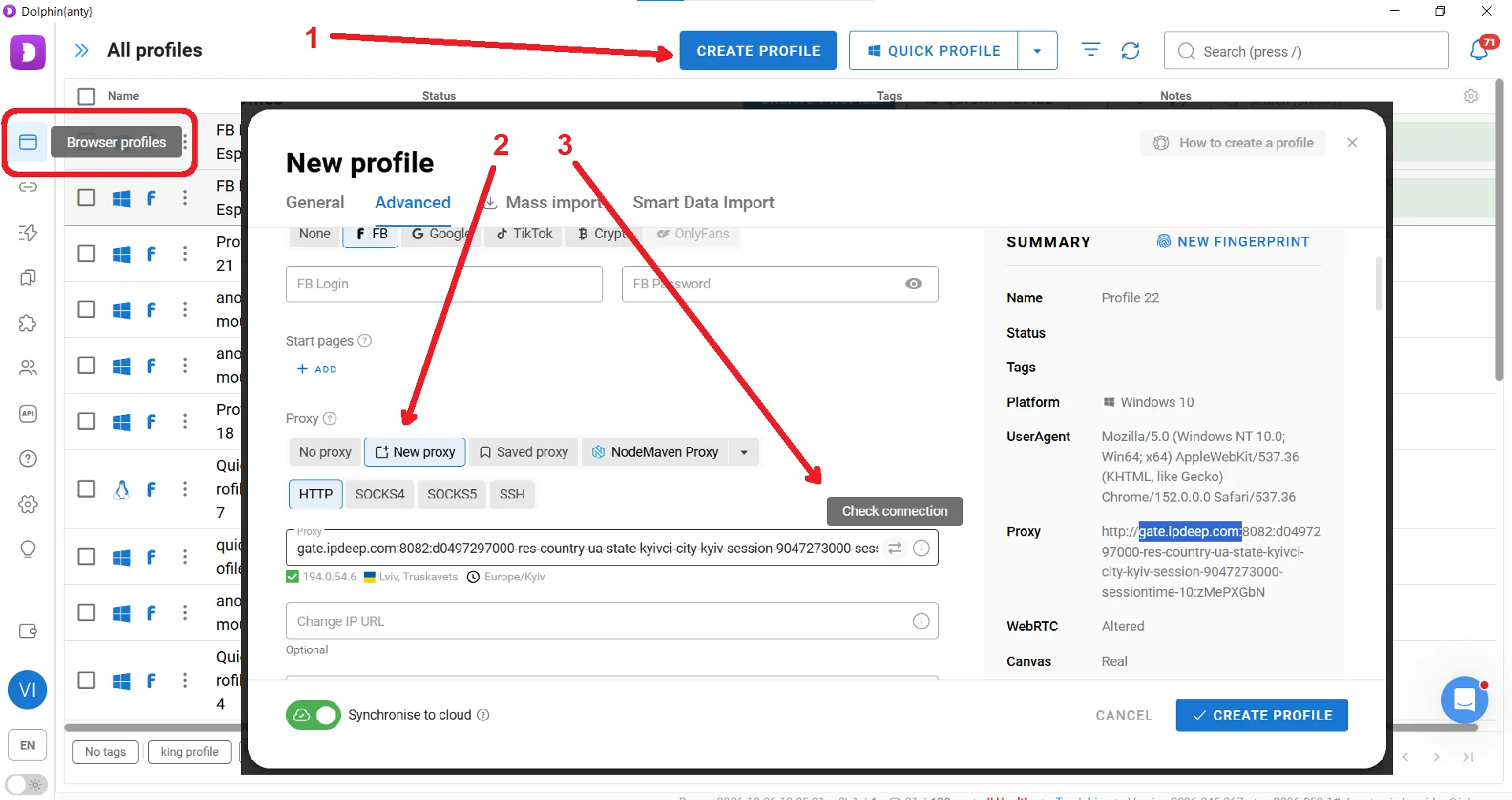
Additional settings are also available. You can manually adjust the User-Agent, WebRTC, Canvas, WebGL, WebGL Info, screen resolution, RAM, and other fingerprint parameters.
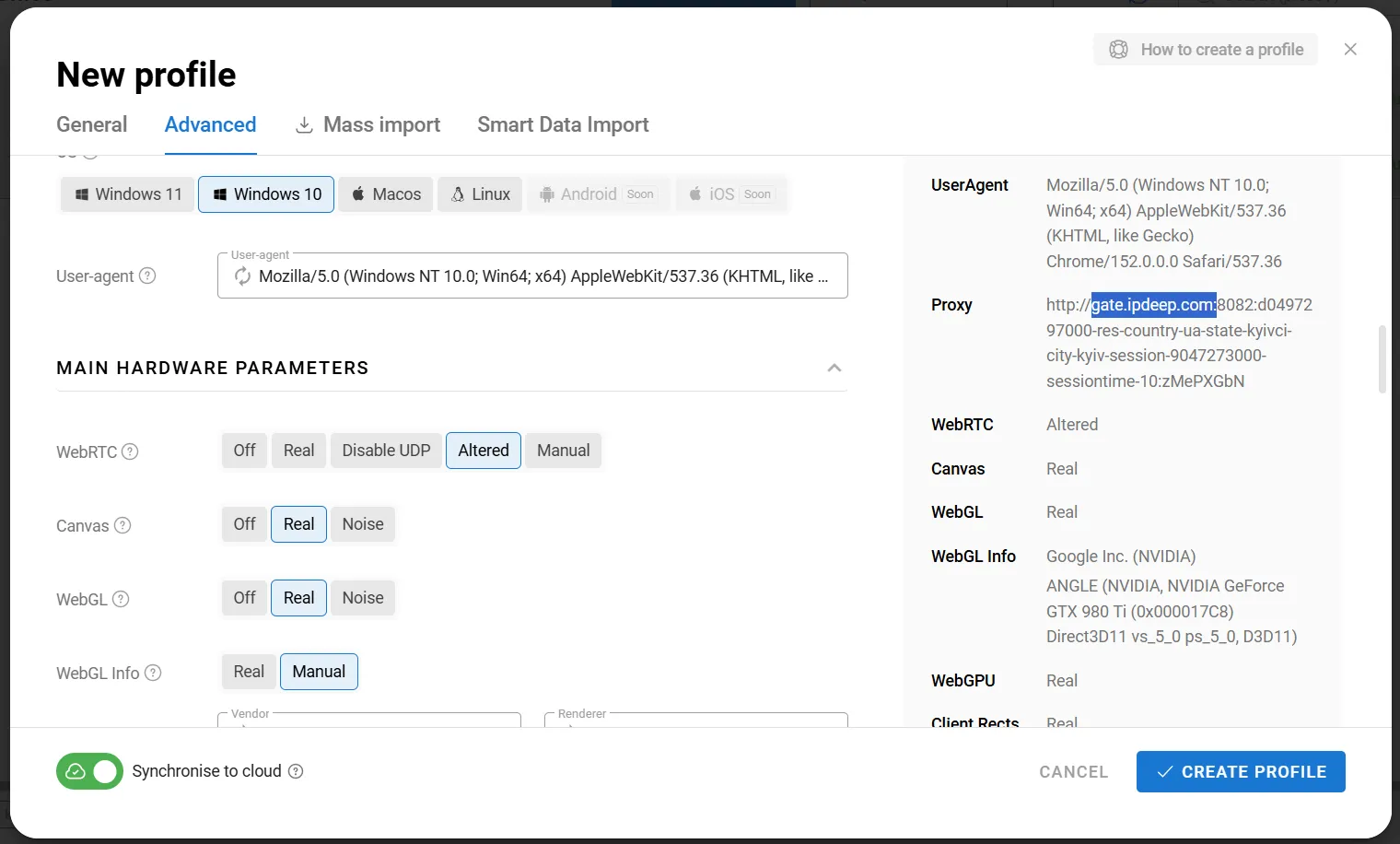
However, unless you have a specific reason to do so and, more importantly, understand how browser fingerprinting works, it is best to leave the automatically generated fingerprint unchanged.
How to Add IPDEEP Proxies
An antidetect browser alone is not enough, as it does not hide or replace your IP address. This is where a proxy comes in.
For this example, we will use IPDEEP. The service offers dynamic and static residential proxies, mobile proxies, and data center IPs. Its network covers more than 200 countries and regions, with a pool of over 30 million IP addresses.
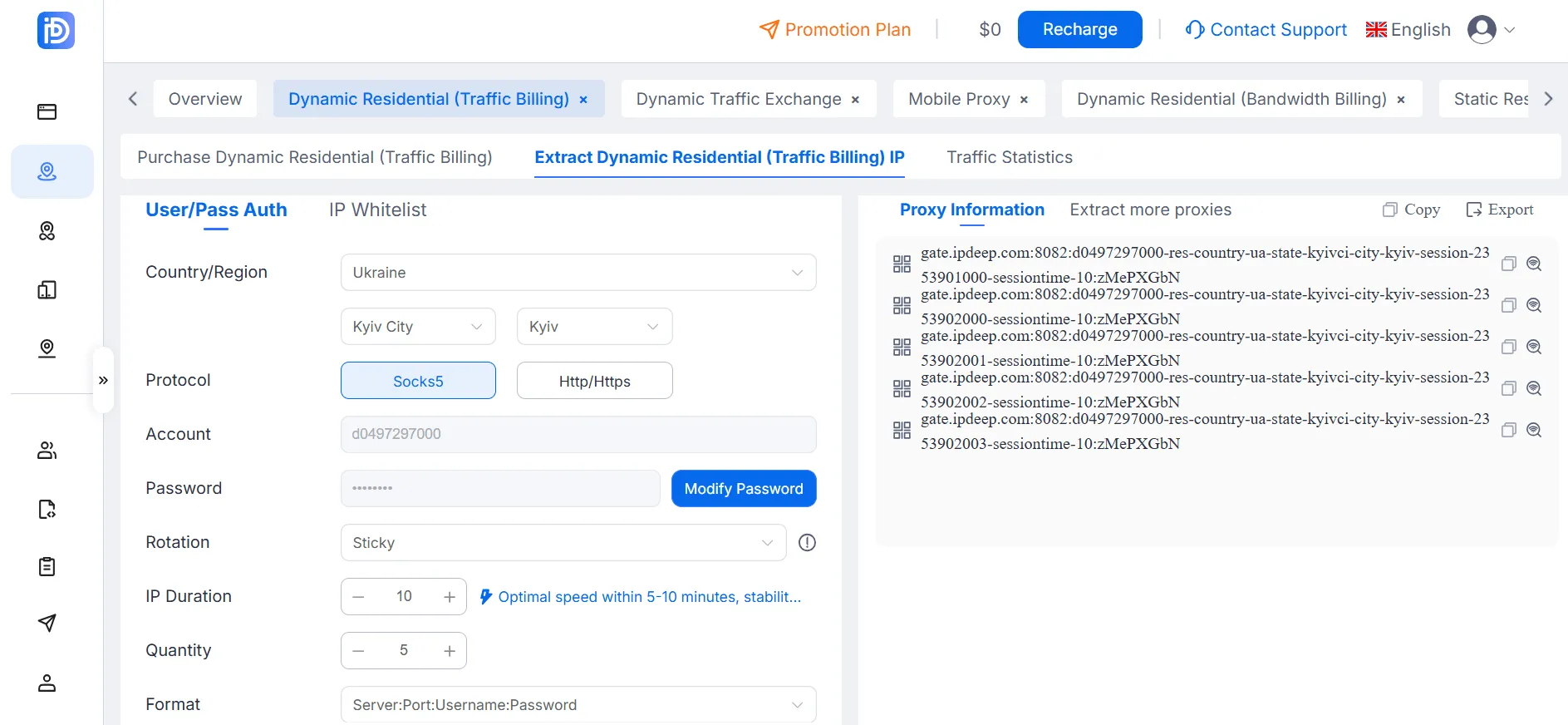
After purchasing proxies, open the Extract Proxy IP tab. Here, you can select the proxy type, country, connection settings, and number of ports. You also need to choose the protocol and output format.
For this example, we will select five proxies located in Kyiv, Ukraine, using the SOCKS5 protocol.
As shown above, a proxy can be added directly when creating a browser profile. However, Dolphin Anty also offers other ways to add proxies, which can save time when working with multiple connections.
Adding Proxies via the Proxies Section
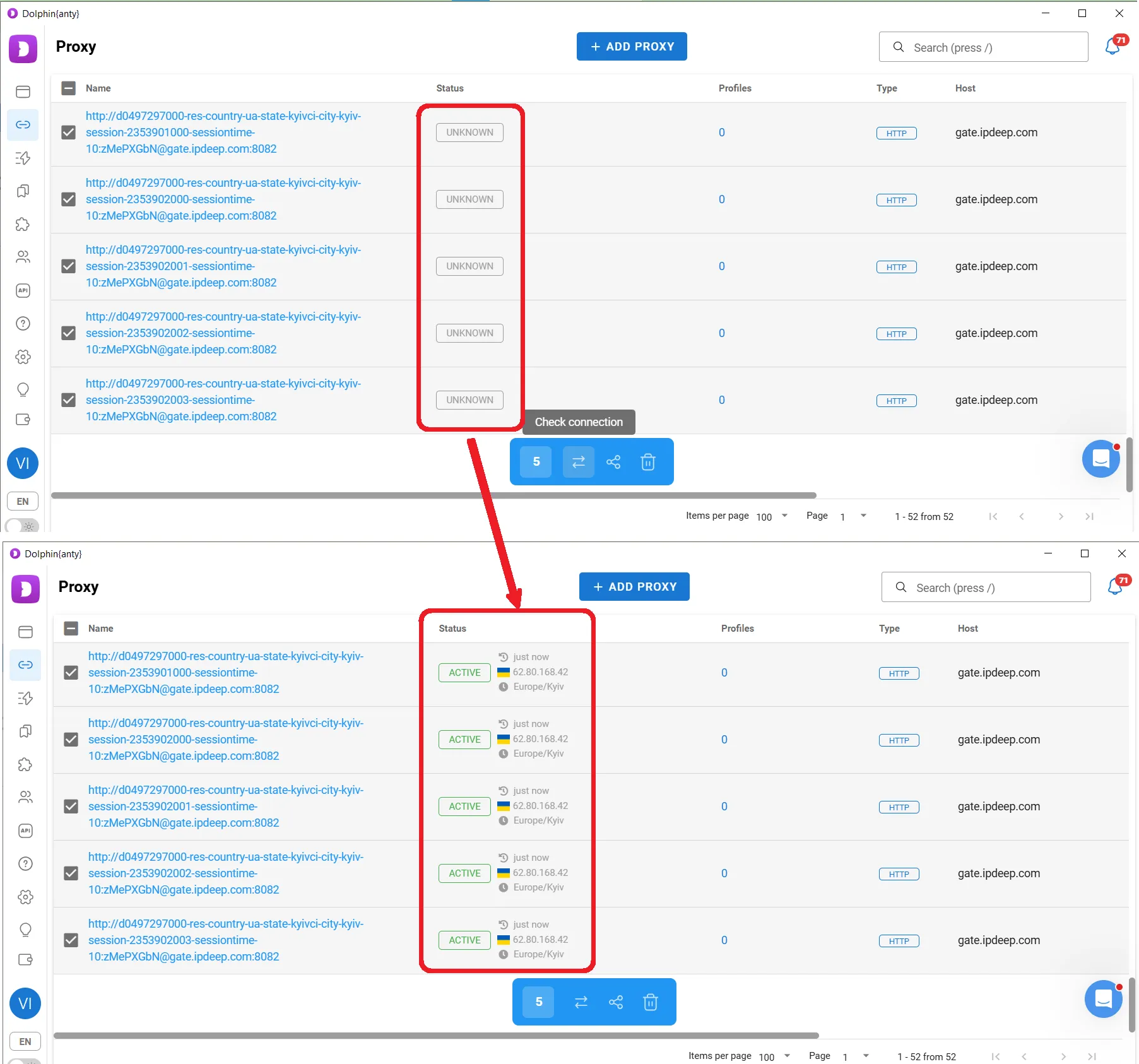
The Proxies section lets you add multiple proxy ports at once and immediately check whether they are working. In the example above, we generated five proxy ports in IPDEEP. Instead of adding them one by one, they can all be imported at once.
Open the Proxies section and click Add above the list. Next, switch to the Mass Addition tab and paste the list of five proxy ports copied from your IPDEEP account into the corresponding field.
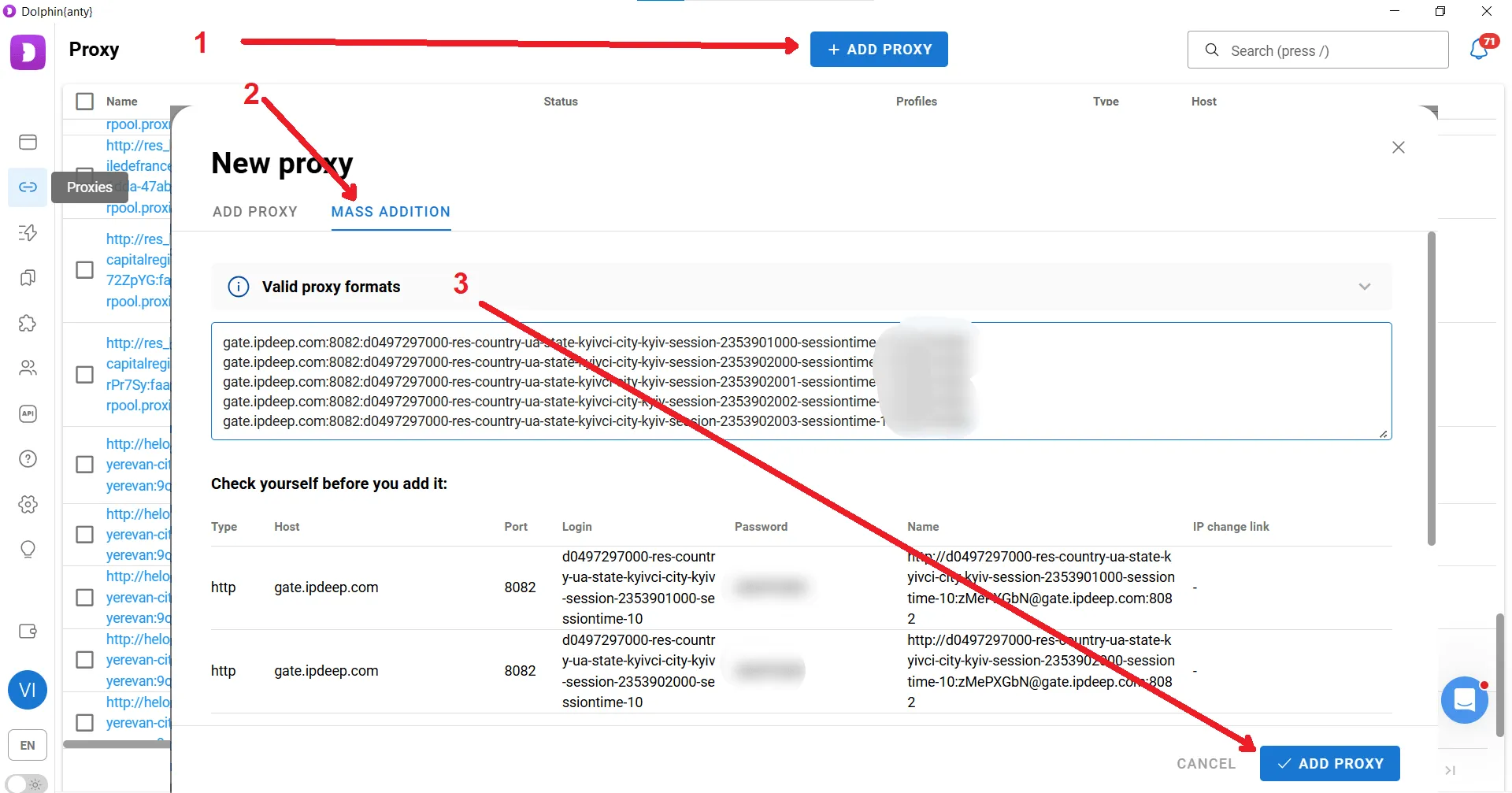
The proxies will now appear in the list. To make sure they are working, select them using the checkboxes and click Check in the panel that appears.
How to Quickly Create Multiple Profiles and Add Proxies
Now that the proxies have been added to the Proxies section, they can be assigned to the same number of browser profiles in just a few clicks.
Creating profiles in bulk works a little differently from creating them one at a time. Start by creating a blank profile without adding a proxy or cookies. For this example, name the profile IPDEEP.
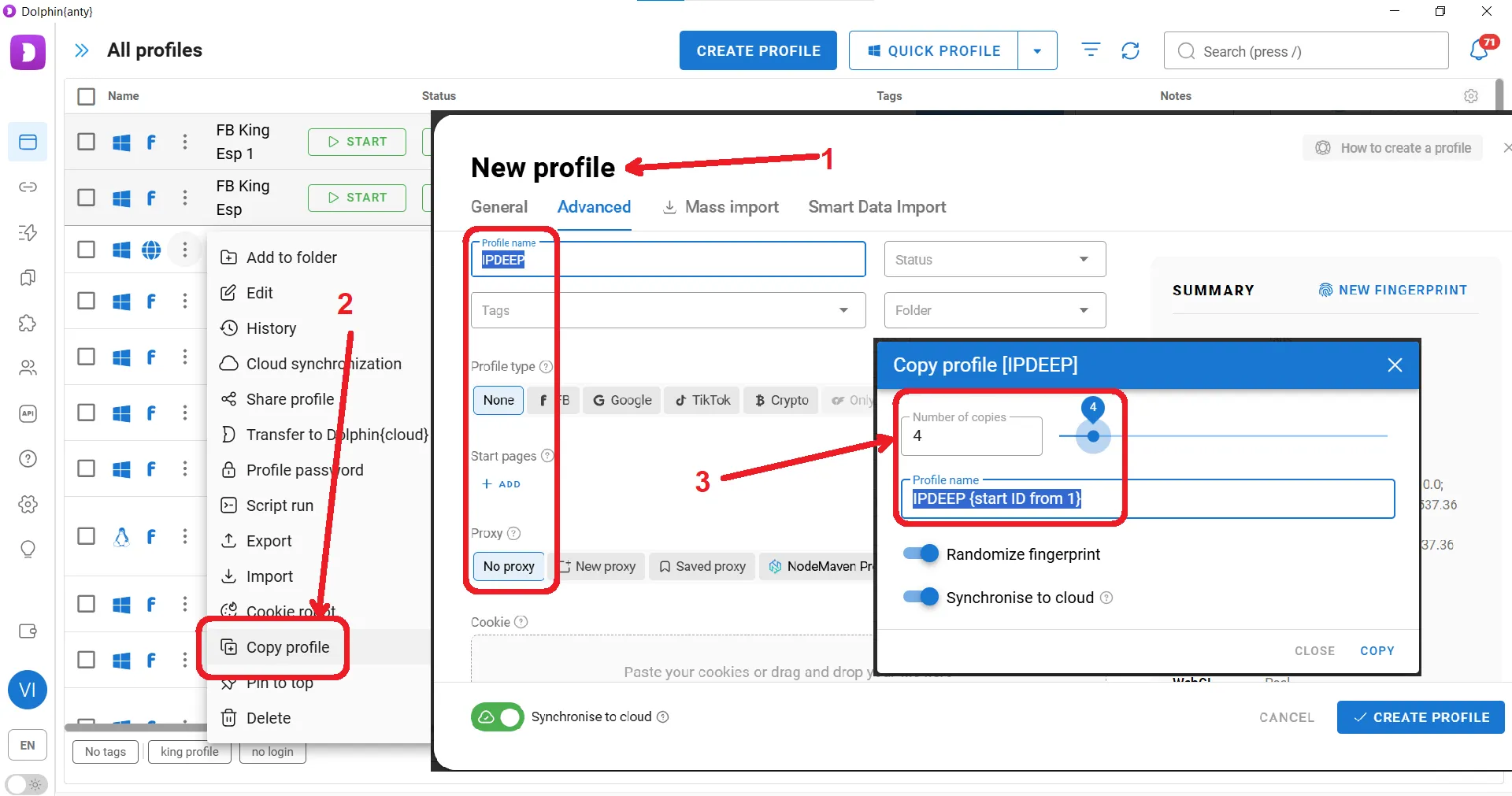
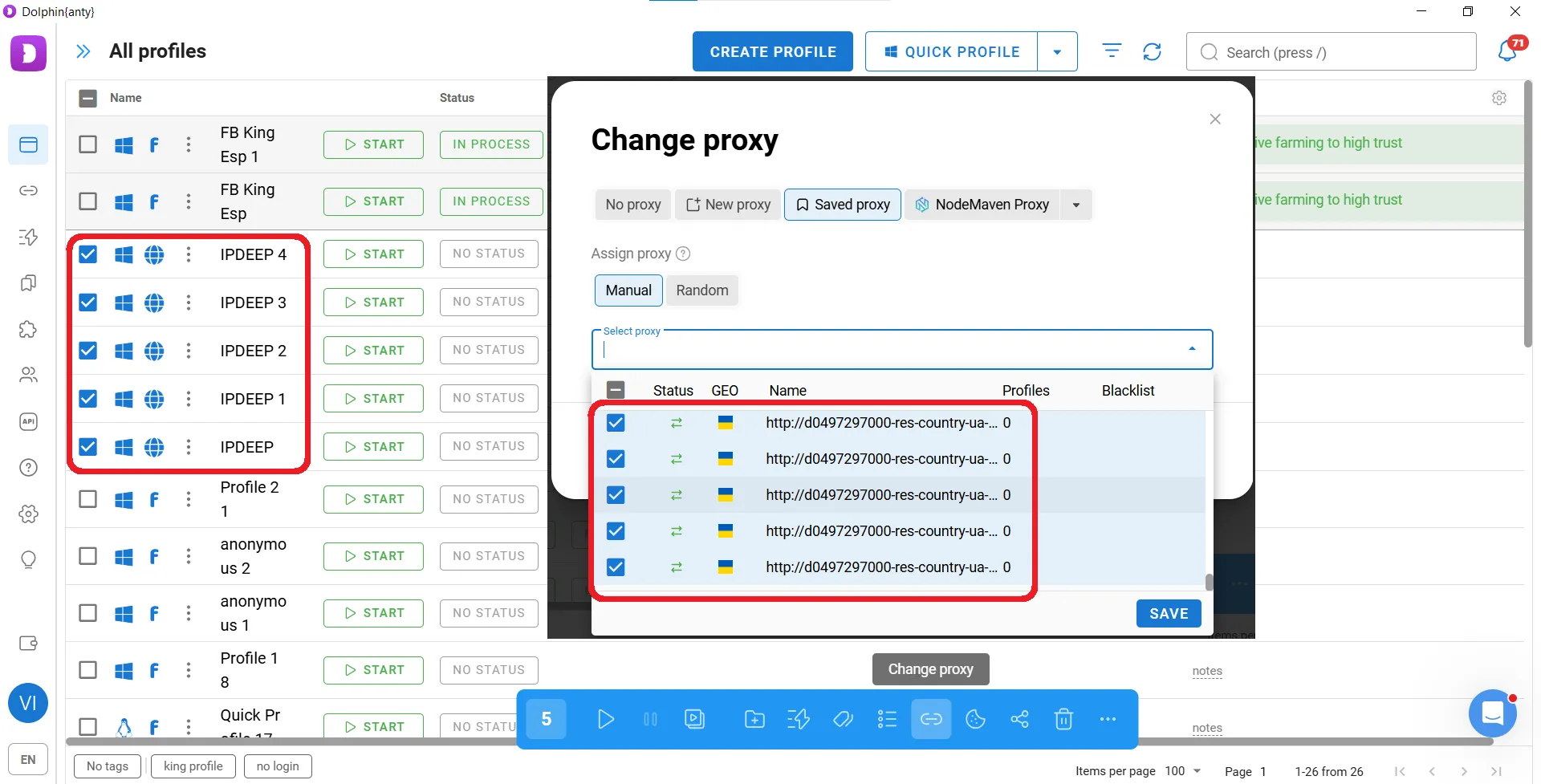
Once the profiles are ready, select them using the checkboxes and click Change Proxy in the panel that appears. In the new window, open the tab with the saved proxy ports and select the ones you want to use.
Click Save, then distribute the proxies among the selected profiles. Each profile will be assigned its own proxy port.
This gives us five browser profiles, each with its own proxy connection.
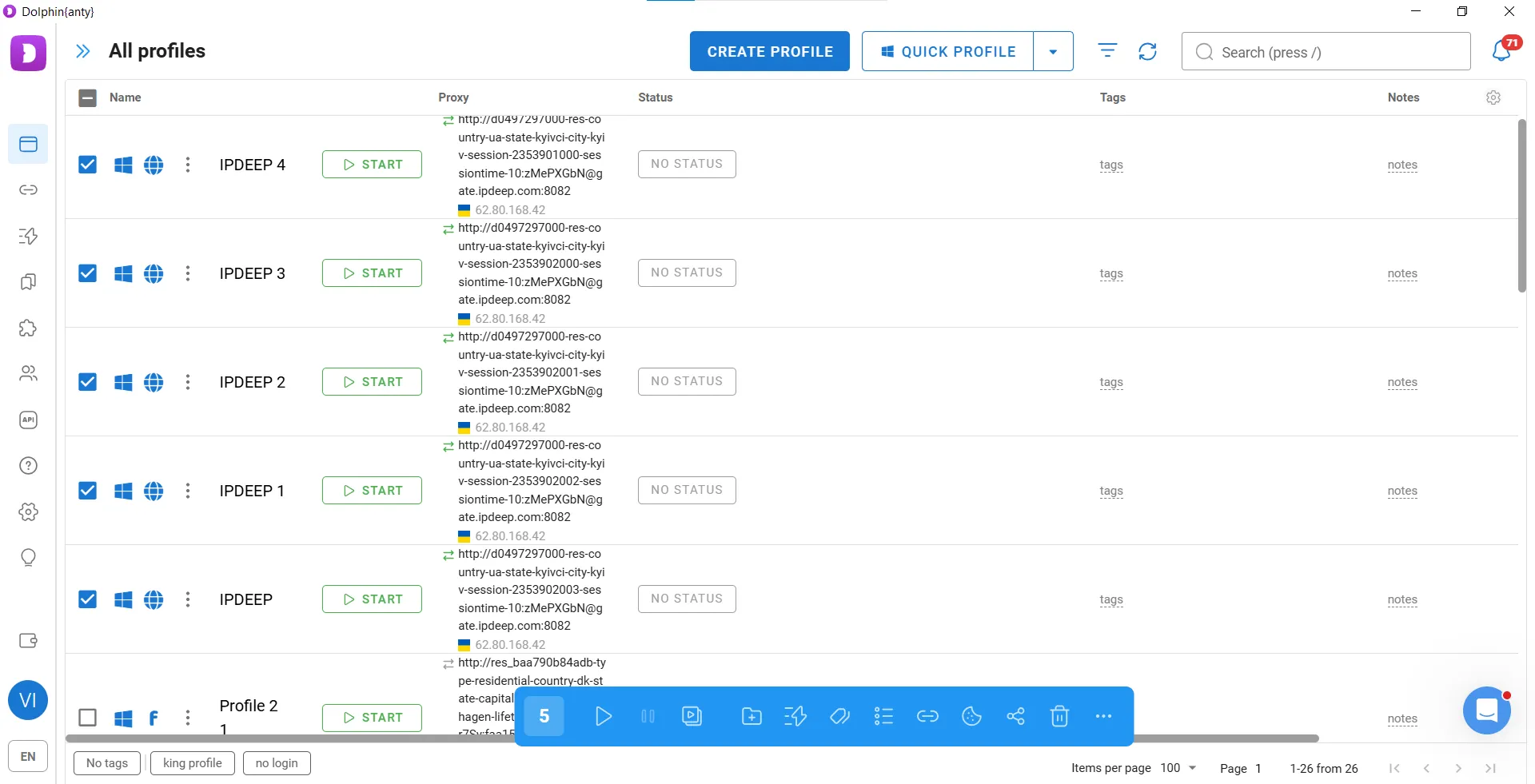
In fact, the same method can be used to quickly create not just 5 profiles, but 50, 500, or even more.
Building Up Profiles with Cookies
A high-quality fingerprint and a clean IP address do not automatically make a browser profile look trustworthy. An empty cache and no cookies can make the environment stand out from that of an average internet user.
When you purchase accounts, the seller will often provide cookies along with them. But if you are creating an account from scratch or simply browsing websites without logging in, the profile needs to build up its own cookie history.
This is where Cookie Robot comes in. It automatically visits specified websites and collects cookies for the profile. To use it:
• Prepare a list of URLs;
• Select a browser profile;
• Launch Cookie Robot.
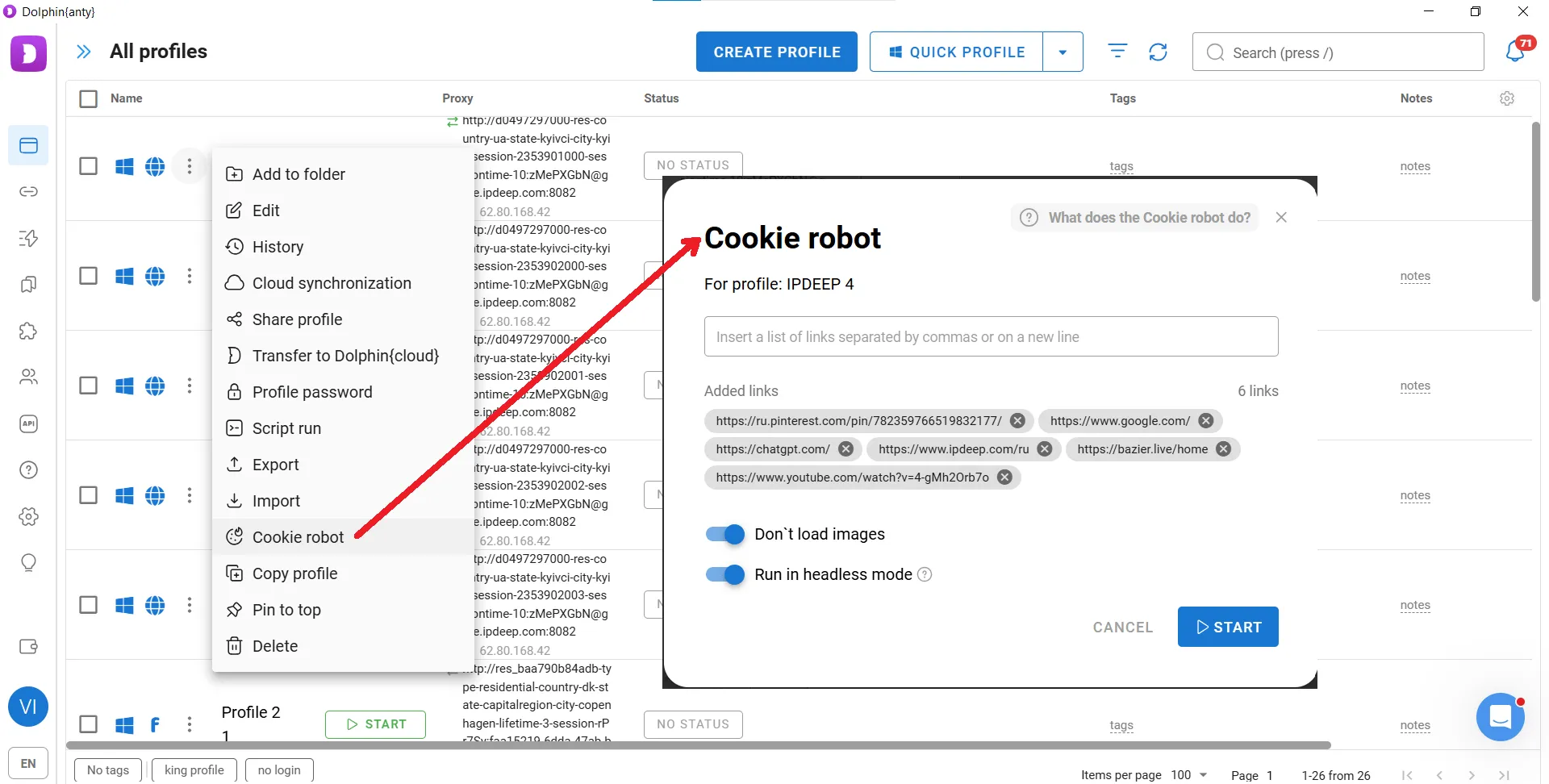
From there, Dolphin Anty handles the process automatically without requiring any further input.
Cookie Robot is useful not only for building up cookies in a new profile before you start working with it. Running it periodically can also help maintain a more natural browsing history. After all, a typical user does not visit just one target platform, but browses a variety of websites over time.
How to Scale and Speed Up Your Workflow: Scenarios and Synchronizer
Creating five profiles is easy. Once that number grows to 50, 100, or more, a different challenge appears: managing to work with all of them efficiently. Dolphin Anty provides two tools for automating and scaling repetitive tasks: Synchronizer and Scenarios.
Synchronizer: Perform the Same Action Across Multiple Browsers
Synchronizer lets you replicate your actions across multiple browser profiles at once. This is useful when the same action needs to be performed in several accounts or on the same website from different browser profiles.
To launch Synchronizer, select the profiles you want to use, choose the corresponding option from the bottom panel, and then designate one of the profiles as the master profile.
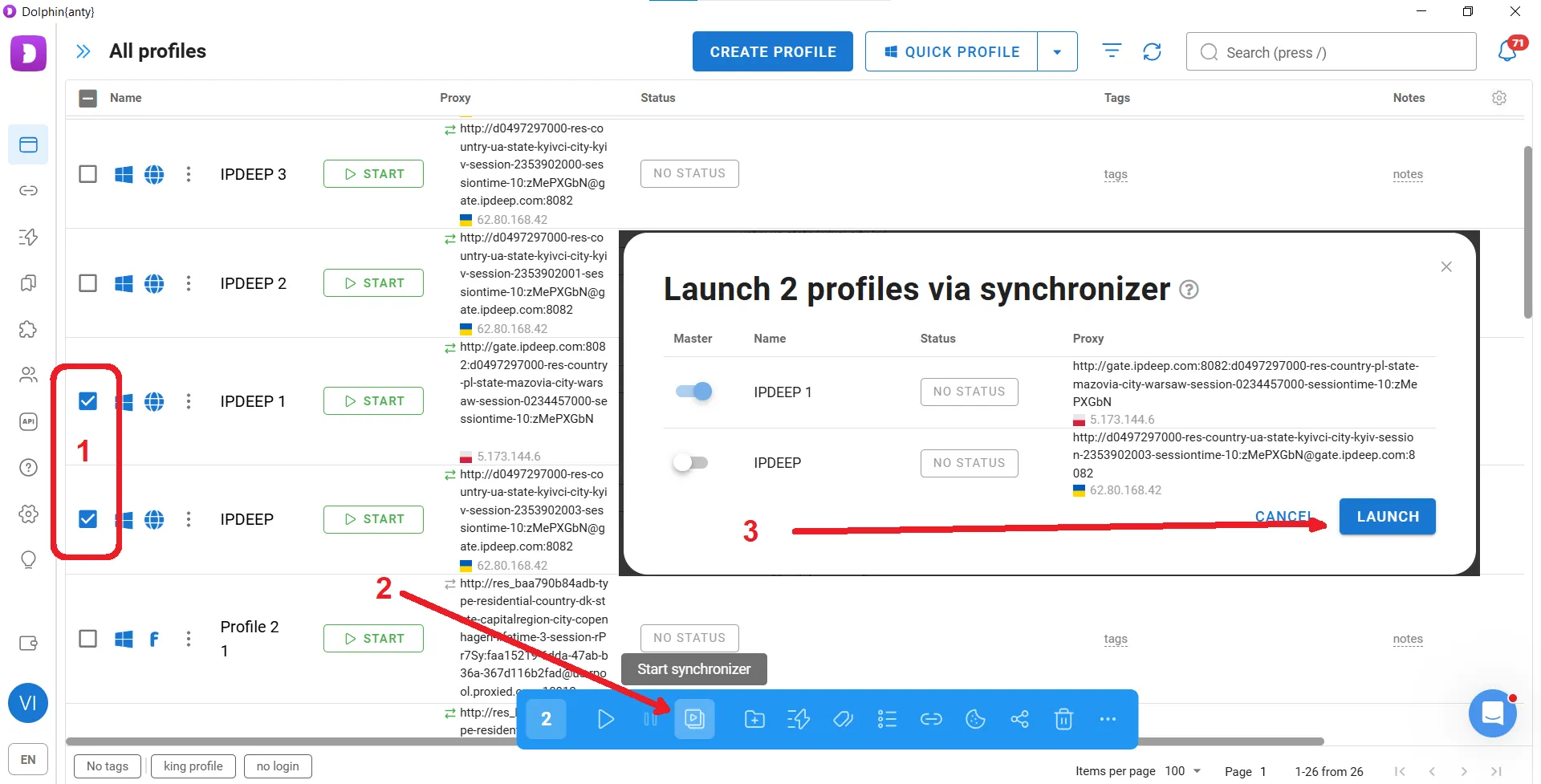
Once Synchronizer is activated, actions performed in the master profile are automatically replicated across the other selected profiles.
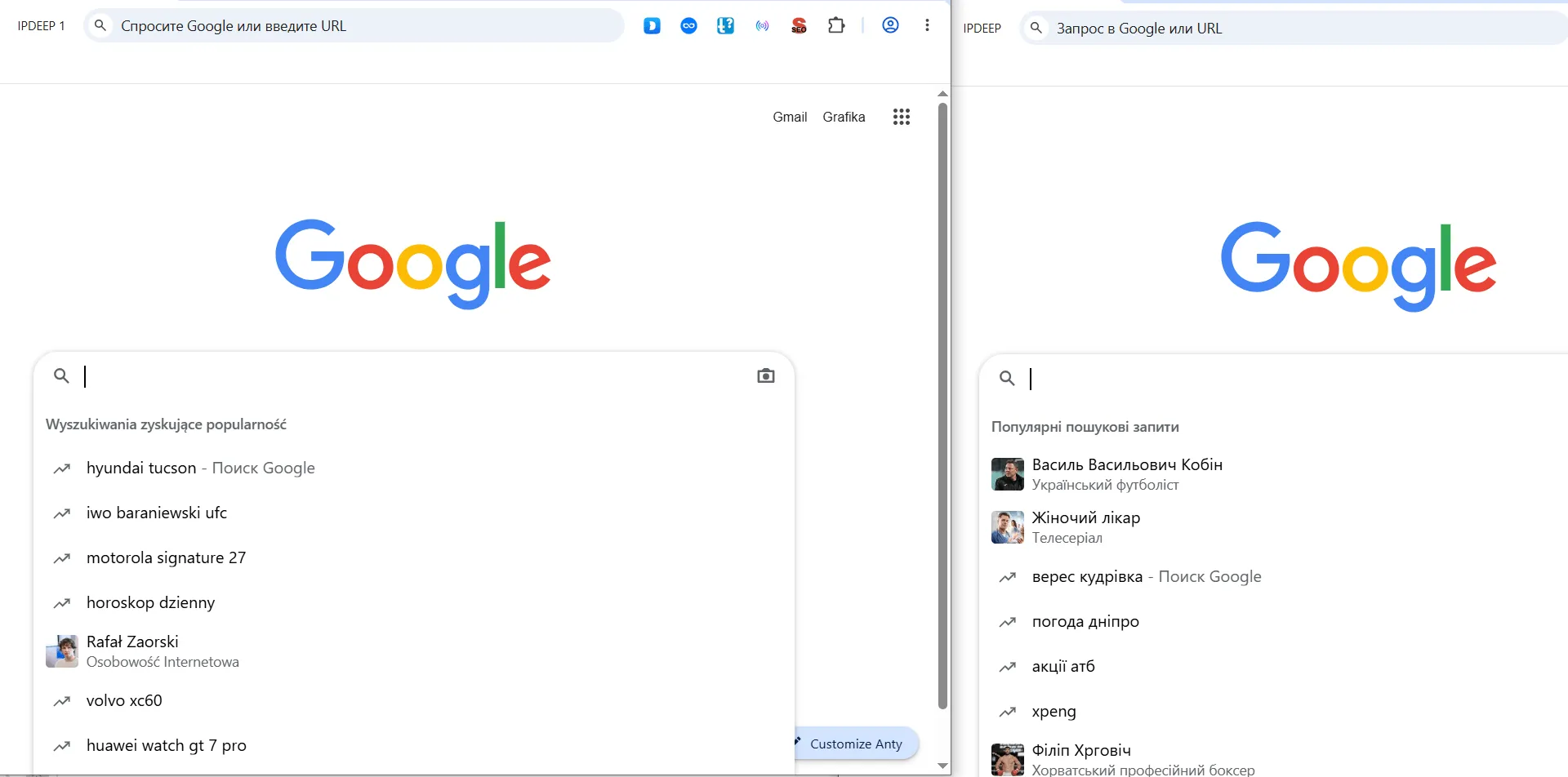
Each profile still maintains its own separate environment. In the example above, one browser was connected through a Ukrainian proxy, while the other used a Polish IP address. As a result, clicking the search bar produced different localized results in each profile.
Scenarios (Scripts)
While Synchronizer replicates user actions in real time, Scenarios let you build a sequence of actions in advance.
To create one, open the corresponding section and go to the Create tab. A scenario is built from individual blocks that can be used to open pages, click elements, enter text, add delays, and perform other actions.
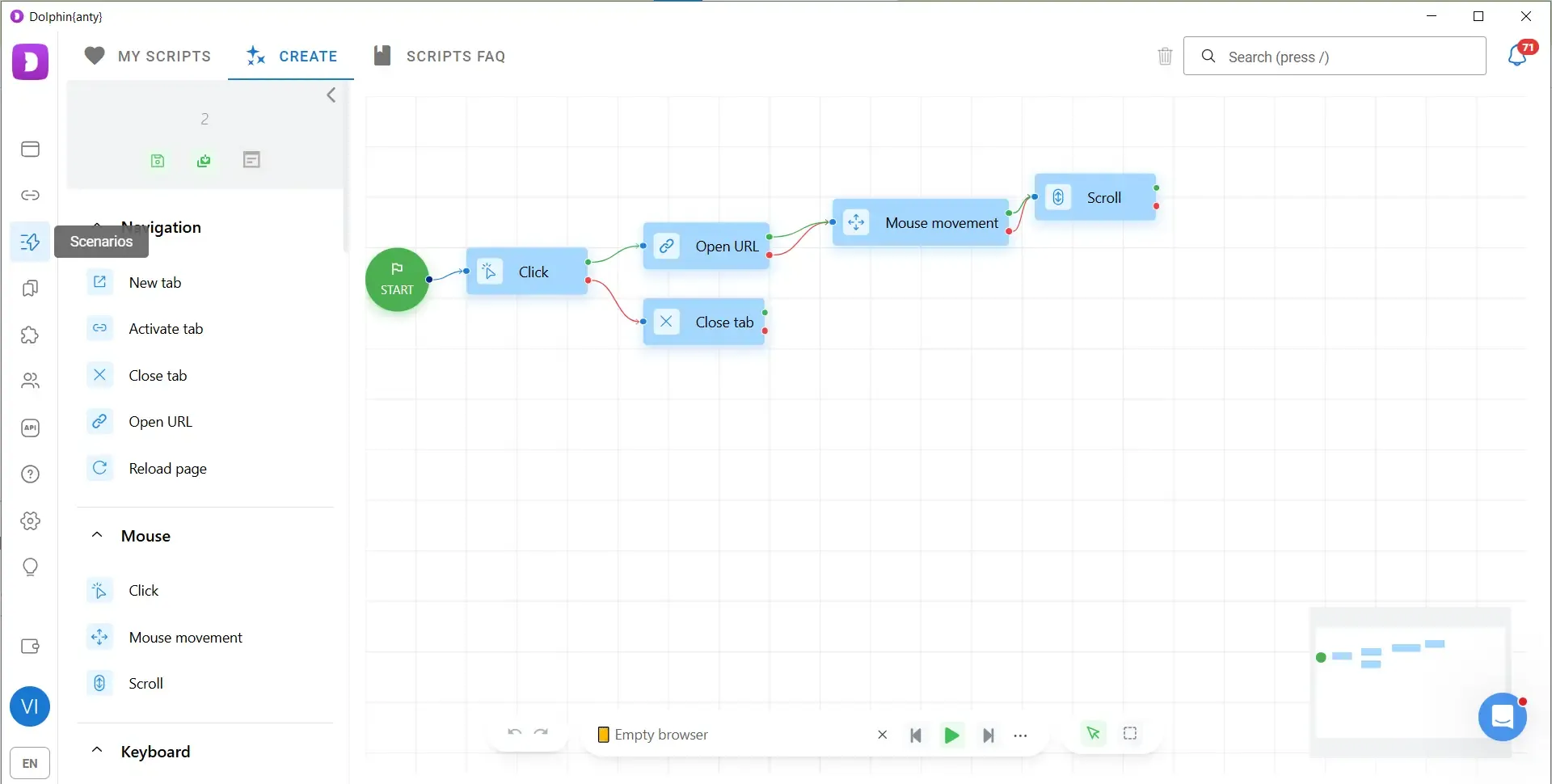
Once the scenario is ready, save it and run it in one or multiple browser profiles.
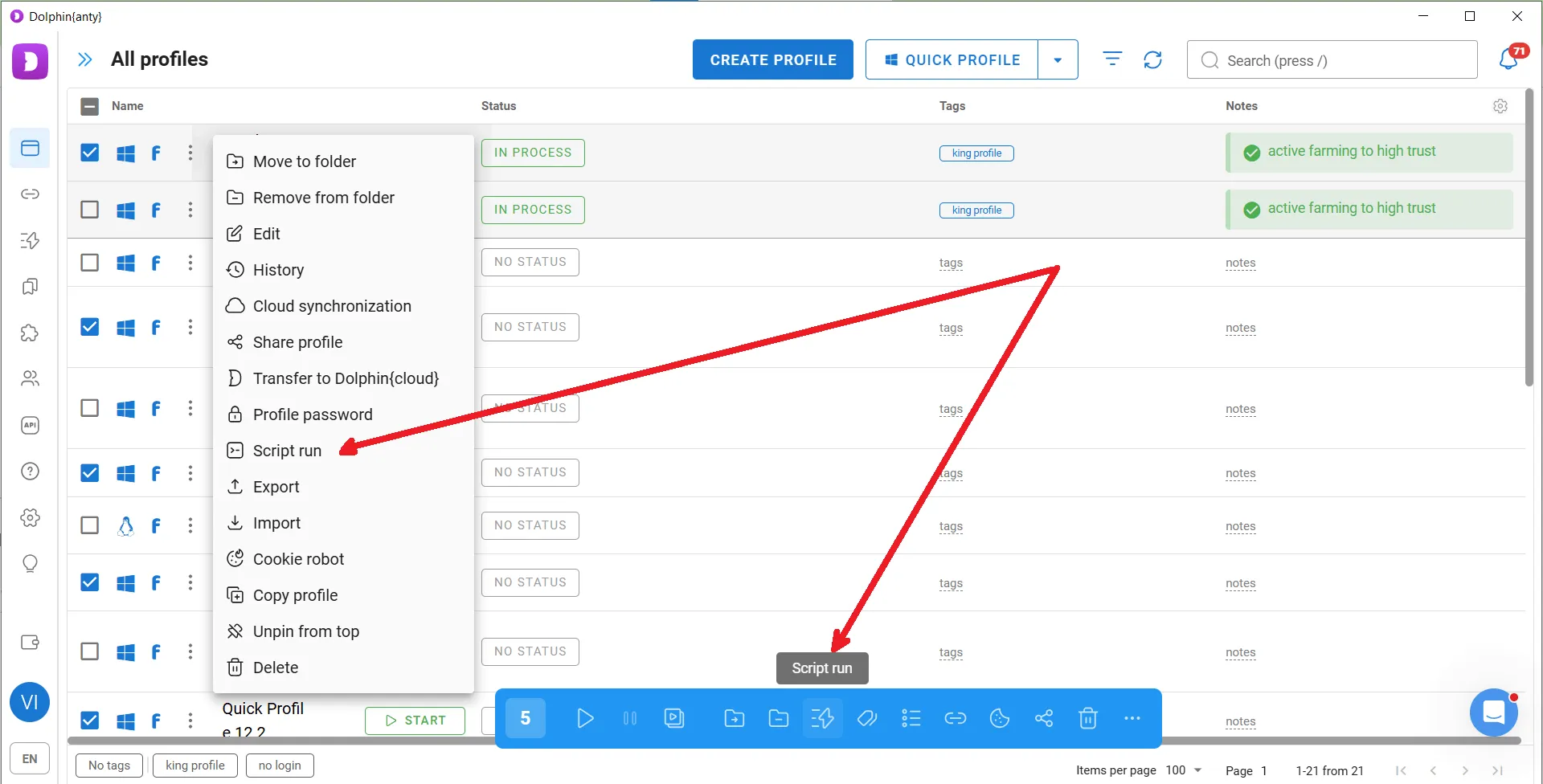
Scenarios are useful for simple, repetitive workflows. Instead of manually performing the same set of actions every day, you can build the workflow once and run it whenever needed.
For more advanced automation, Dolphin Anty also provides an API. Technical teams can integrate browser profile management into their own infrastructure and automate profile creation, configuration, and launching.
Add Bookmarks and Extensions to Multiple Profiles at Once
When you manage dozens of accounts, even small setup tasks can take a significant amount of time. Suppose every new profile needs the same extension and five work-related websites added to its bookmarks. With 100 profiles, doing this manually becomes a task of its own.
Dolphin Anty lets you manage bookmarks and extensions centrally.
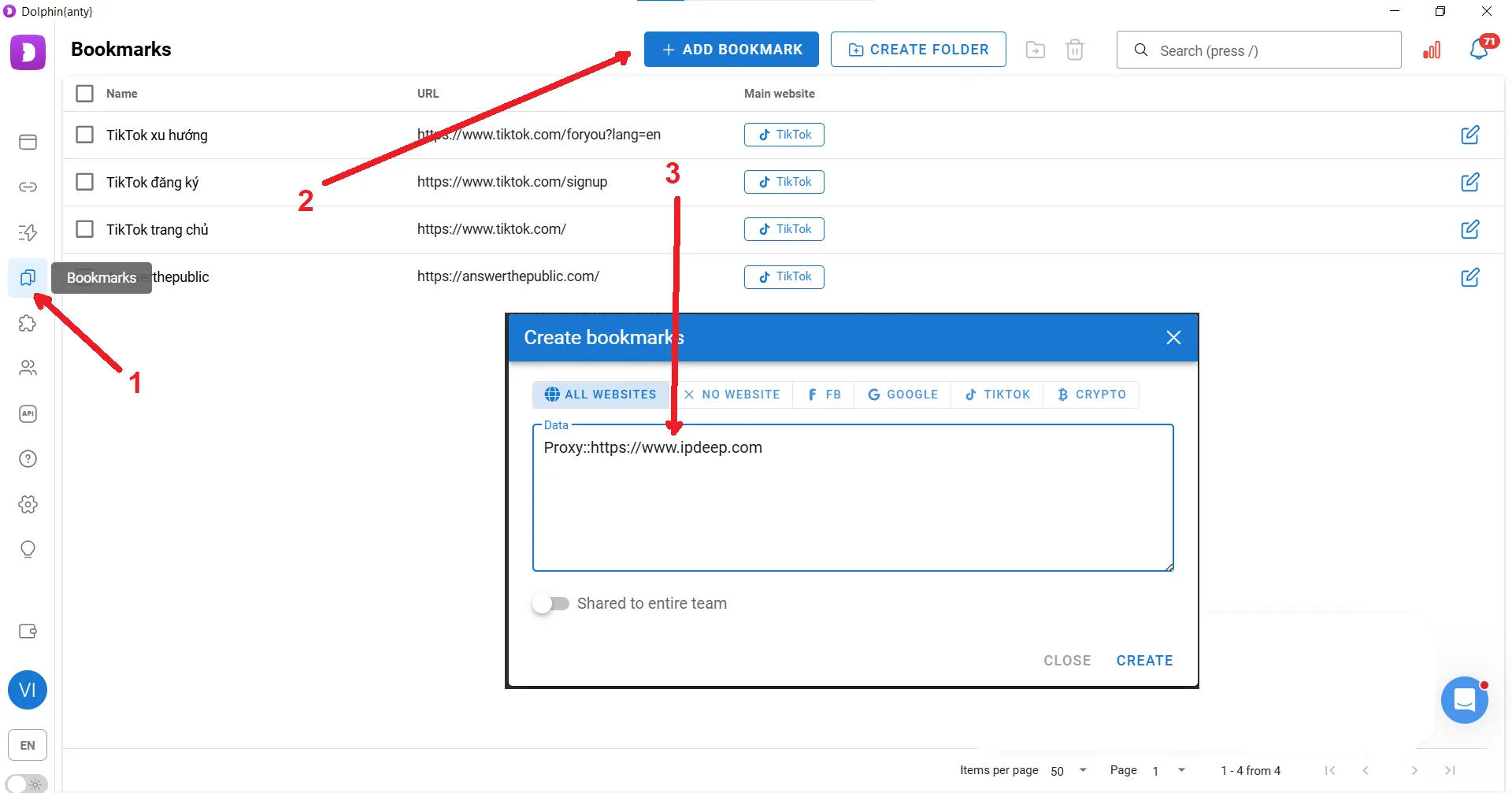
To add a bookmark, specify its URL and select the profile types where it should appear. If you choose All Websites, the bookmark will automatically be added to every new profile you create.
Extensions can be added in a similar way, either by pasting a link from the Chrome Web Store or by uploading an archive.
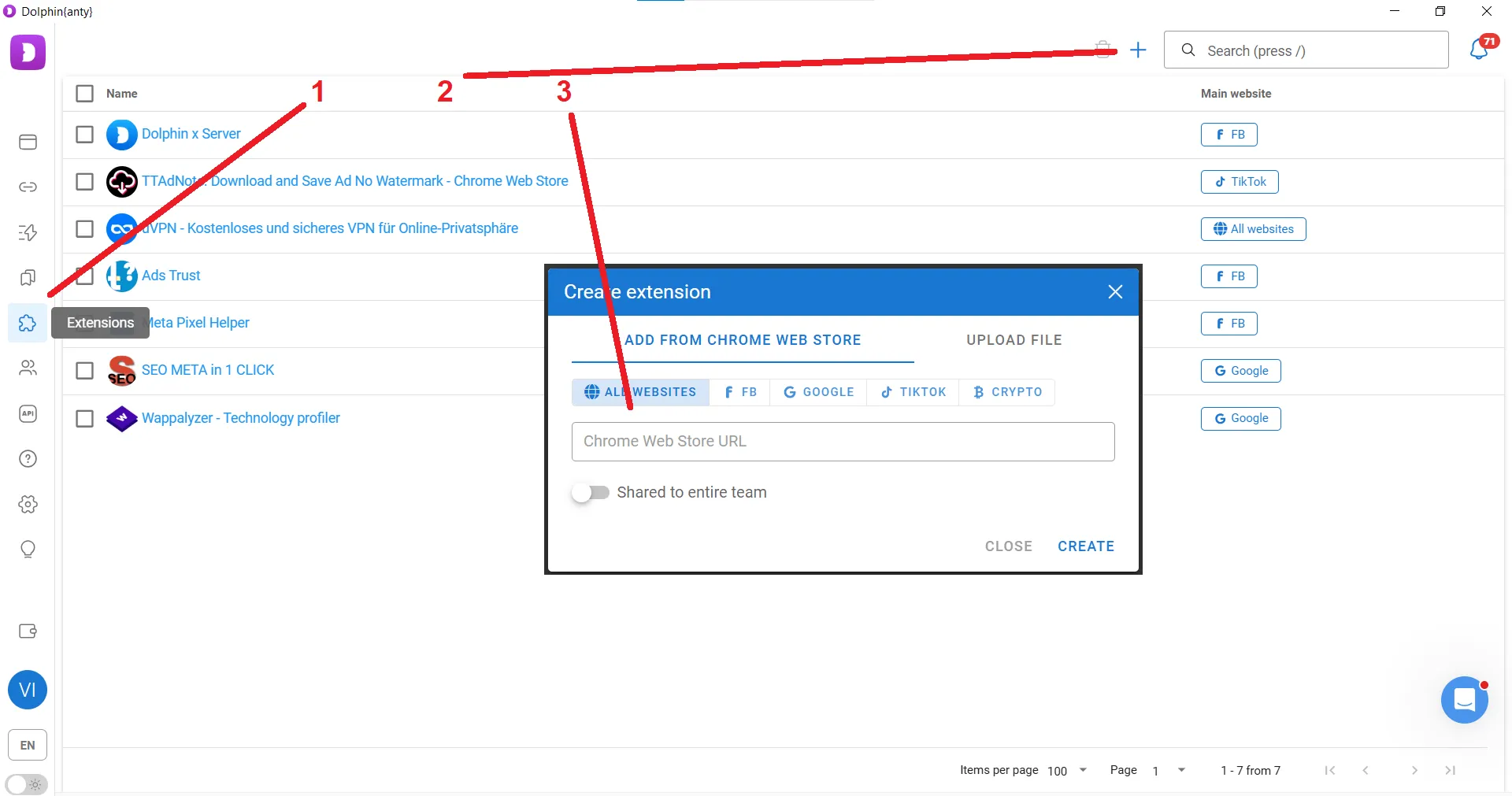
Once configured, the required tools will automatically appear in the relevant profiles.
Important: If you add a bookmark or extension, it will not appear in profiles that were created earlier. It will only be added to browser profiles created after the bookmark or extension was configured.
Teamwork
You can add new users to your Dolphin Anty account and assign them different roles. These team members can then be given access to your browser profiles, proxies, and scenarios. Different access levels can also be configured for individual profiles.
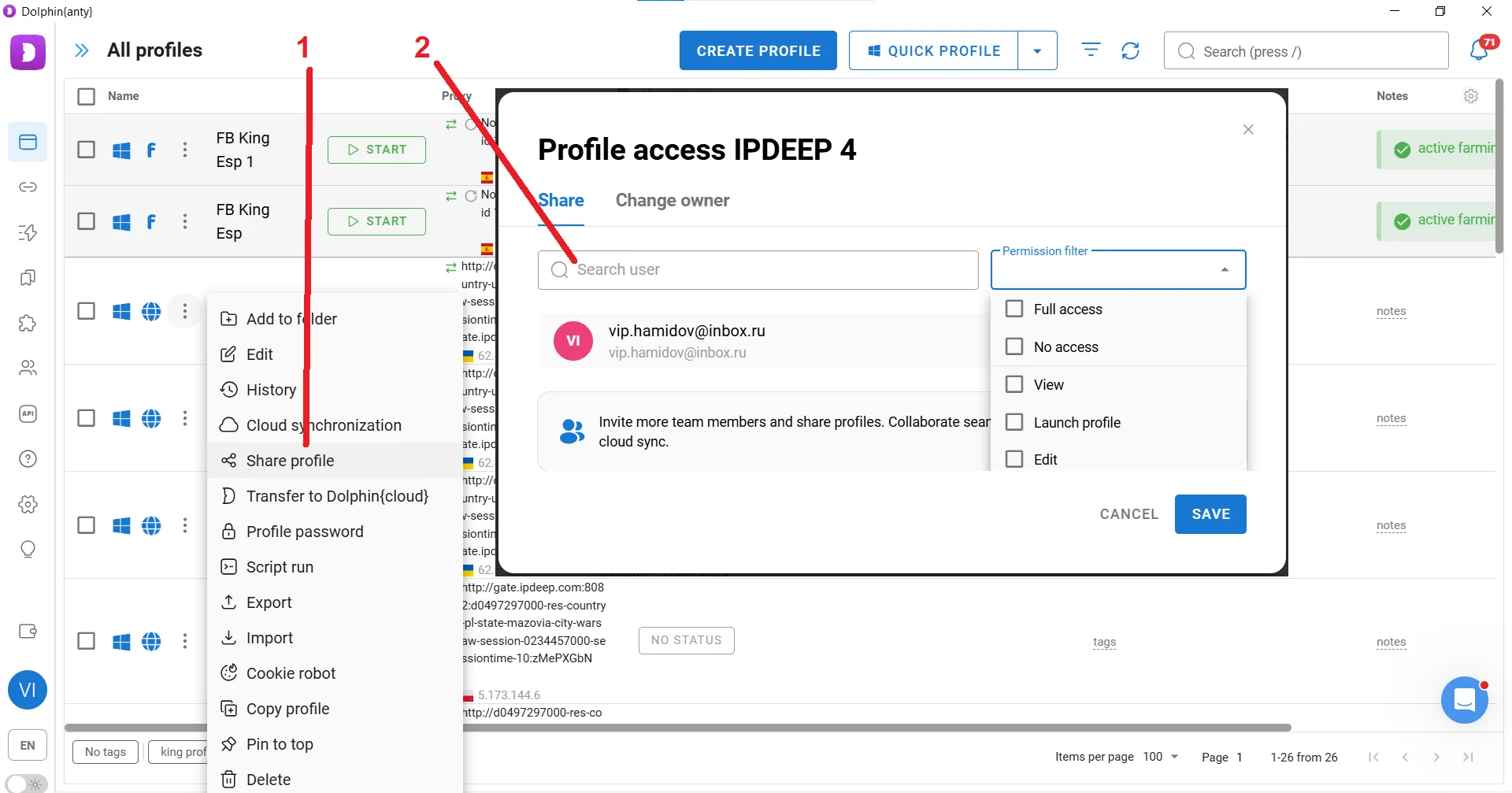
Profiles can also be transferred to Dolphin Anty users outside your team. Open the Change Owner tab to transfer the entire browser profile, along with its environment and data, to another user.
Why Go Through All This When Anonymous Browsers Like Tor Exist?
Some of Dolphin Anty's features may seem unnecessary if all you need is anonymous browsing. However, many websites today restrict functionality when they detect traffic coming from anonymity-focused browsers.
Platforms generally expect browsers to provide a standard set of device and browser information. When some of these signals are hidden or unavailable, the browsing environment may stand out from that of a regular user. This can make anonymous browsers unsuitable even for tasks such as checking ads or localized content from another region, let alone managing multiple accounts.
An antidetect browser takes a different approach. Instead of simply hiding browser and device information, it provides websites with a consistent alternative fingerprint. The goal is to make each browser profile resemble a regular browsing environment rather than an anonymous one.
Conclusion
Dolphin Anty creates and isolates browser environments, while IPDEEP provides them with separate network connections. Together, they can be used both for managing multiple accounts and for scaling a workflow to dozens or hundreds of browser profiles.